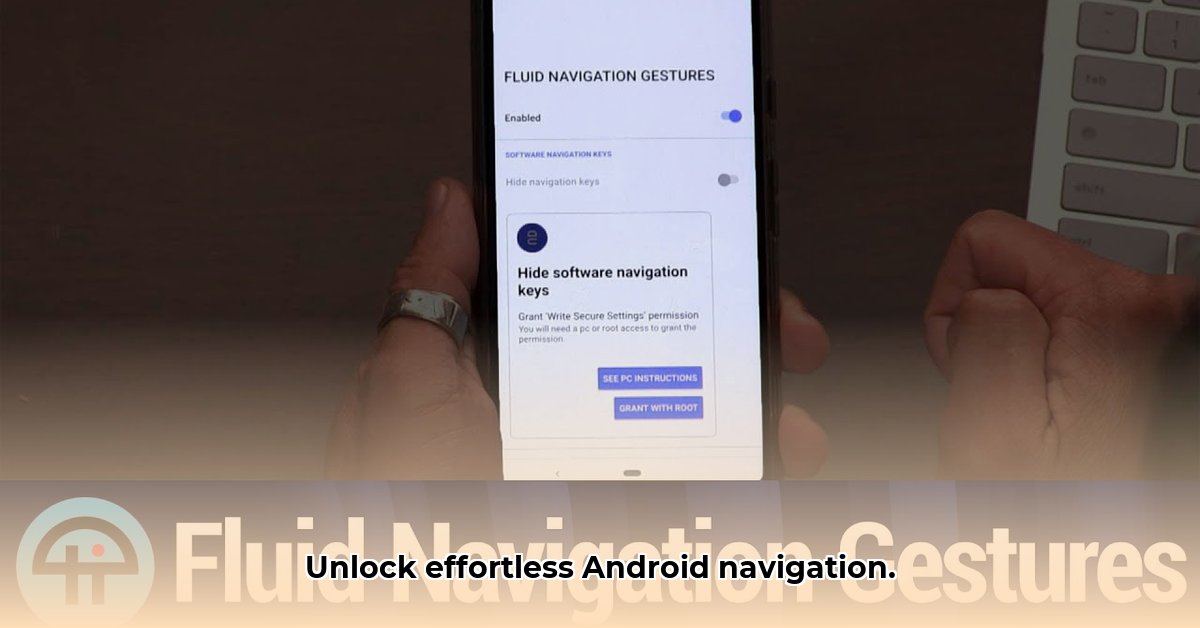
Ready to ditch those clunky on-screen navigation buttons and experience a smoother, faster Android? Fluid Navigation Gestures (FNG) offers a powerful alternative, albeit one requiring some technical setup. This guide provides a detailed, step-by-step walkthrough, highlighting both the advantages and challenges. We'll cover installation, configuration, troubleshooting, and offer a balanced review to help you decide if FNG is right for you.
System Requirements & Prerequisites: Preparing Your Android Device
Before you begin, ensure your device meets these requirements:
Android Version: FNG requires a relatively recent Android version. Check your phone's settings; older versions may have compatibility issues. Consult online resources for compatibility with your specific phone model.
ADB (Android Debug Bridge) Setup: This is crucial. FNG requires ADB installed on your computer. Think of ADB as a bridge enabling your computer to communicate with your phone. Root access is an alternative, but ADB is generally safer and recommended. We'll guide you through ADB setup shortly. Don't worry if this sounds complex; the following steps will clarify the process.
Mastering ADB: A Step-by-Step Installation Guide
ADB is the key that unlocks FNG's functionality. Follow these numbered steps carefully:
Download the Android SDK Platform-Tools: Download the platform-tools package from the official Android developer website. A web search will quickly lead you to the correct page.
Extract the Files: Unzip the downloaded file to a location easy to find on your computer.
Enable USB Debugging on Your Phone: This allows your computer to connect to your phone. Locate "Developer options" in your phone's settings; you may need to repeatedly tap "Build number" to uncover this menu. Within "Developer options," enable USB debugging.
Connect Your Phone: Connect your Android phone to your computer using a USB cable.
Open Command Prompt (Windows) or Terminal (Mac/Linux): Locate and open the appropriate application on your computer.
Navigate to the Platform-Tools Directory: Use the
cdcommand to navigate to the directory where you extracted the platform tools. For example (Windows):cd C:\path\to\your\platform-tools. (ReplaceC:\path\to\your\platform-toolswith your actual path). Online resources can assist if you encounter difficulties.Verify the Connection: Type
adb devicesand press Enter. A successfully connected phone will be listed. If not, review the previous steps; many online guides provide further troubleshooting assistance.
Installing and Configuring Fluid Navigation Gestures
Download FNG from a reputable source (such as APKMirror). Installation is usually straightforward; follow the app's instructions. Now for the customization:
Gesture Selection: Choose between "Quick Swipe" and "Swipe & Hold" gestures. Experiment to determine what feels most natural.
Action Mapping: Assign actions (Back, Home, Recent Apps, etc.) to your chosen gestures. Experiment until you find an intuitive workflow.
Trigger Point Adjustment: Fine-tune the screen areas where FNG responds to your swipes for optimal comfort and ease of use.
Using Fluid Navigation Gestures: A Practical Demonstration
With setup complete, practice using your new gestures. It might take some time to adjust, but the improved speed and efficiency will be worth it.
Troubleshooting Common Issues
While relatively rare, problems may arise. Here are some common issues and their solutions:
Gestures Unresponsive: Check trigger points, ensure no other apps obstruct them, and consider restarting your phone.
Conflicts with Other Apps: Disable competing navigation apps.
Random Glitches: Clear the FNG app's cache and data.
Persistent ADB Issues: Thoroughly check each ADB setup step. Numerous online resources provide troubleshooting assistance.
Review and Conclusion: A Balanced Assessment
FNG provides a significant improvement in Android navigation, but it’s not without drawbacks.
Pros: Highly customizable, increased efficiency, enhanced one-handed usability.
Cons: Requires ADB setup (technical skill needed), potential compatibility issues, and slightly steeper learning curve than typical navigation methods.
FNG is ideal for tech-savvy users willing to invest time in setup. The reward is a highly personalized, efficient navigation experience, but users should carefully consider the initial technical hurdles. This guide provides the knowledge necessary to make an informed decision.
Key Takeaways:
- FNG delivers significant improvements to Android navigation speed and efficiency.
- The setup process requires technical skill and involves using ADB (Android Debug Bridge).
- A range of customizable options allows for a personalized navigation experience.
⭐⭐⭐⭐☆ (4.8)
Download via Link 1
Download via Link 2
Last updated: Friday, May 09, 2025